Users can request access to the Site Inspection Report (SIR) – SAPAA application by agreeing to terms via the “Say Hello to SIR-SAPAA!” post. An email is sent with long in details as well as guidance.
- SIR-SAPAA Policy
- SIR-SAPAA User Addition – Overview
- Requesting Access
- SAM-IAM Spreadsheet
- SIR-SAPAA User CRUD
- Email User
The current version(s) of the Site Inspection Report (SIR) – SAPAA tool is 1.0, web only. These instructions cover these version(s).
SIR-SAPAA Policy
There is not a current approved SIR-SAPAA access policy. The following post is used for guidance pending such a policy being developed: Say Hello to SIR-SAPAA!.
SIR-SAPAA User Addition – Overview
- Users request access, agree to terms and conditions, and create a SIR-SAPAA account via Say Hello to SIR-SAPAA!.
- Upon submitting, this access requests is saved to sapaastewards.com > Jetpack > Forms > “Say Hello to SIR-SAPAA!“.
- The person’s name is added to the system access management / identity and access management tool (SAM-IAM spreadsheet).
- An administrator approves the person’s account in SIR-SAPAA.
- An email is sent to the person (see text below) and the administrator trouble shoots as required.
- Annually, access is evaluated, purged, added, etc.
Requesting Access
Given the small number of users anticipated, the approval process is informal. The President will review requests to determine eligibility. Checks to be conducted include:
- Confirmation of current, paid membership.
- Board approval of an invited guest.
- President prerogative to add individuals.
SAM-IAM Spreadsheet
Update SAM-IAM as follows:
- As required, add the individual’s name to the ‘Who’ tab:
- First Name, Initial; more details as required to differentiate duplicate names, e.g. 2 John Smiths
- Select w.Steward, c.Curr to indicate they have current access as a Steward to SIR-SAPAA.
- Full name in the notes field.
- Email address used to access SIR-SAPAA
- Add their name to the Access Matrix
- Select their name, and SIR-SAPAA-User to indicate they have current access.
- Today’s date and notes as required.
- Annually, the users and access is reviewed.
- A dropped user has their status changed in the ‘Who’ tab from current to past.
- In the Access Matrix tab, no user with past access should have current access to a system.
SIR-SAPAA User CRUD
- CREATE: Only users appearing in SAM-IAM should exist in SIR-SAPAA. This is confirmed annually.
- READ: Administrators require approval by the President; Users approval via the above process.
- UPDATE: As features and functions evolve in SIR-SAPAA, promote/demote users accordingly.
- DISABLE: Users are disabled and generally not deleted once the system is live.
Email User
The following standard email is used providing instructions to access the system.
To: [NEWLY ADDED USER from SAM-IAM]
From: [President or DevTeam SAPAA Emails]
Subject: SIR-SAPAA Says Welcome! – No SIRs Until April 6
Welcome to the SIR-SAPAA community. You are joining 40 years of visiting, inspecting, reporting on, and enjoying Alberta’s protected areas.
- Approved User email: [EMAIL]
- Link: https://w26-project-sapaa-dev-team.vercel.app/
Please note that SIR-SAPAA is in the final stages of going live. As a result, please do not submit a site inspection report (SIR) until AFTER April 5, 2026. During this time, data may be updated or deleted. This is to support the students who built the system during their grading phase of the project.
The Link and Creating an Account
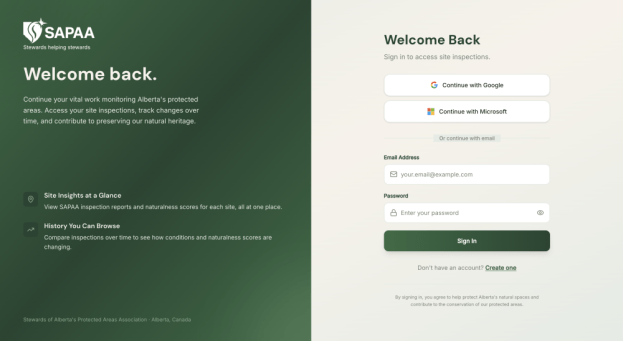
SIR-SAPAA is accessed via this link: https://w26-project-sapaa-dev-team.vercel.app. You are receiving this email because you have created an account in SIR-SAPAA and that account has been approved.
- Troubleshooting Access. If SIR-SAPAA is not opening, try closing the browser and/or rebooting your computer. This will clear memory caches, etc. If these do not work, email: devteams@sapaastewards.com.
You are In, Watch the Tutorial
The first thing to do is watch the tutorial shown on the screen. Until you and SIR-SAPAA are good friends, we recommend re-watching the tutorial each time you visit. This can be done by clicking on Help and then App Tutorial.
Play Around With the Sorts and Filters
Before submitting your first report, we recommend playing around with various sorts and filters. For example can you:
- Find all sites ‘Never Inspected’ or which site has the most recent visit?
- All the sites in ‘Sturgeon County’?
One Site’s Details
Next pick a site which has been visited (e.g. Alexo, at the top of the list). Open the site up and follow the tutorial. Replay the tutorial a few times to get familiar with the page. Play around with the sorts and filters. For example, for one site, can you:
- View all inspections by date?
- Compare historical motorized disturbances across all inspections (Question 63)?
- See if there are any images associated with the site?
Ready to Inspect a Site?
If you have a site inspection report ready to go, pick a site and enter the values. Be sure to upload any images from the inspection (but after April 5, 2026, please!).
Got Photos?
(Please do not upload photos until after April 5, 2026.)
Photos provide a historical record of these sites, even if they are one, ten, or forty years in the past. In the next version you will be upload these photos even if they are not associated with an inspection. Each photo requires three pieces of information:
- WHERE (Site): The protected area the photo refers to.
- WHEN (Date of Visit): The date of the photo. For older images, an approximation is fine.
- WHO (Photographer): Who took the image and owns the rights to it.
- WHY (Identifier): 1-2 words why the image is important.
- WHAT (Caption): A longer description of the image.
Thank You!
Thank you for your interest in Alberta’s Protected Areas. This is one way that YOU and SAPAA can help to preserve these sites for future generations. Your contributions are important and it is a great way to visit hidden corners of our province!
 SAPAA
SAPAA 